Table Of Contents
5 Powerful AI Prompts to Make Your LinkedIn Profile Photo Look Premium
Published on : May 29 2026

Our profile pictures on LinkedIn will be the first impression our recruiters, clients, or employers see. It may not be professional, and as a result, it might hurt our image and reduce our credibility before we even start to write the description.
People would either pay a fortune for some headshots or use randomly cropped pictures that won't portray them correctly. Nowadays, there are ways to get more professional-looking pictures quickly using AI-based image generation tools. All that is required is to use the right prompt.
All the variations will depend on how we frame our prompts. It means that even tiny nuances like lighting, background, clothes, camera angle, facial expression, etc., can greatly affect the result. Using prompts made specifically for LinkedIn photos makes the generated images look very professional and credible.
Quick Summary
What it is: Professional headshots generated via AI with cinematic prompts
Tools: Midjourney, Flux, DALL-E, Stable Diffusion
Recommended for: Individuals searching for employment, entrepreneurs, freelancers, executives, consultants
Level: Basic, all prompts can be used without modification
Estimated time to read: About 8 to 10 minutes
5 Powerful AI Prompts for a Premium LinkedIn Profile Photo
1. The Classic Corporate Headshot
The most universally recognized LinkedIn photo style. Clean, sharp, and works across every industry from finance to tech.
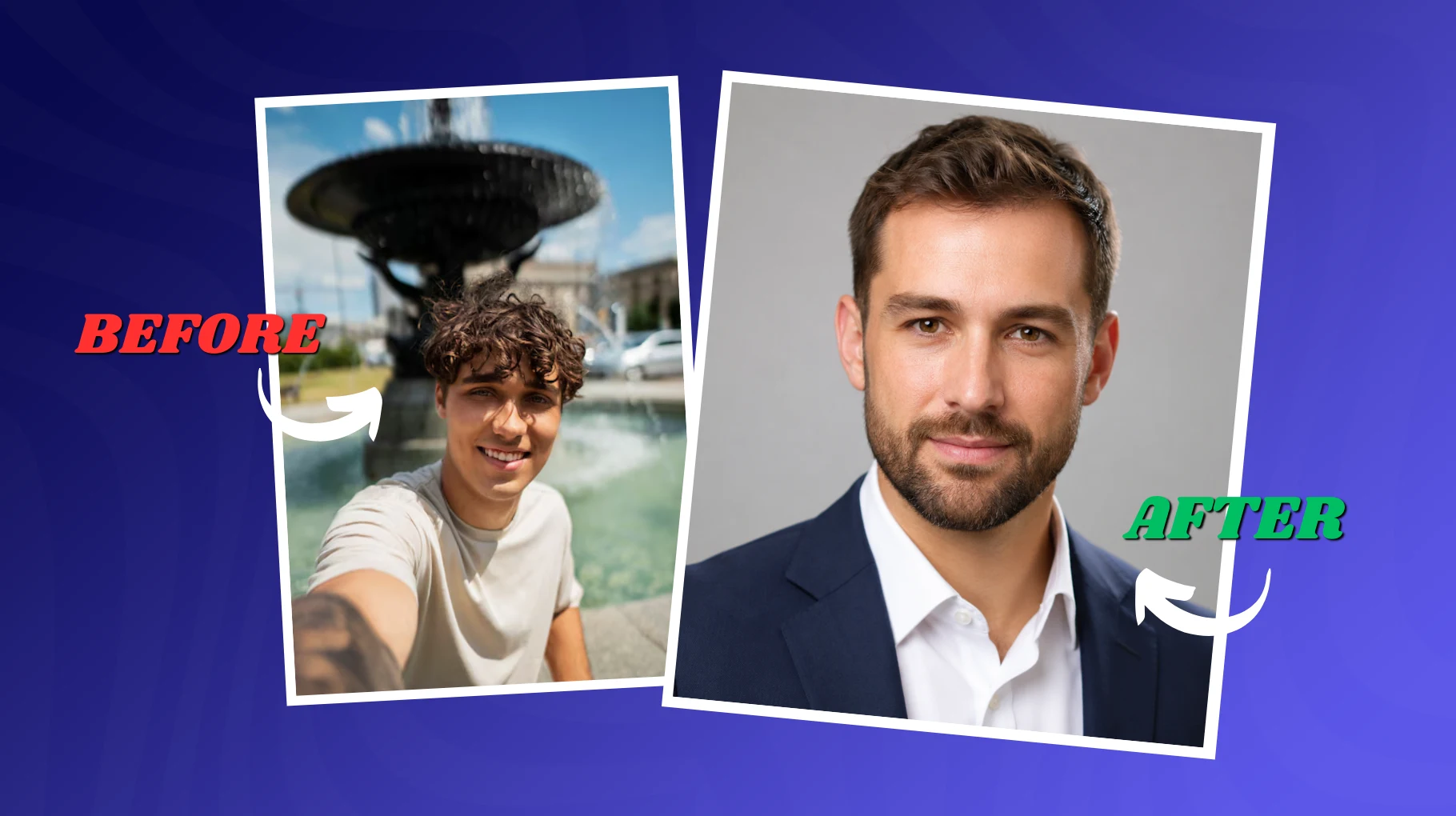
Professional corporate headshot of a confident man in his 30s wearing a navy blue business suit and a white dress shirt. Soft studio lighting with a large octabox light source, slight rim light on the shoulder to add depth. Shot on an 85mm f/1.8 lens, shallow depth of field, crisp focus on the eyes. Clean light grey seamless background. Neutral, confident, approachable expression. Ultra-realistic skin texture, 8K detail, corporate photography style, subtle warm color grade.
Why it works:
It is worth noting that using an 85mm lens produces a natural compression of the background, creating the classic headshot look. The octobox light indicates that the model will emulate professional lighting techniques, which would be soft and even in nature.
The addition of the rim light to the shoulder enhances the three-dimensional effect.
Best for: Finance, law, consulting, corporate executives, business professionals
2. The Approachable Tech Professional
Tech and startup culture call for something slightly less formal. This prompt hits that sweet spot between polished and personable.
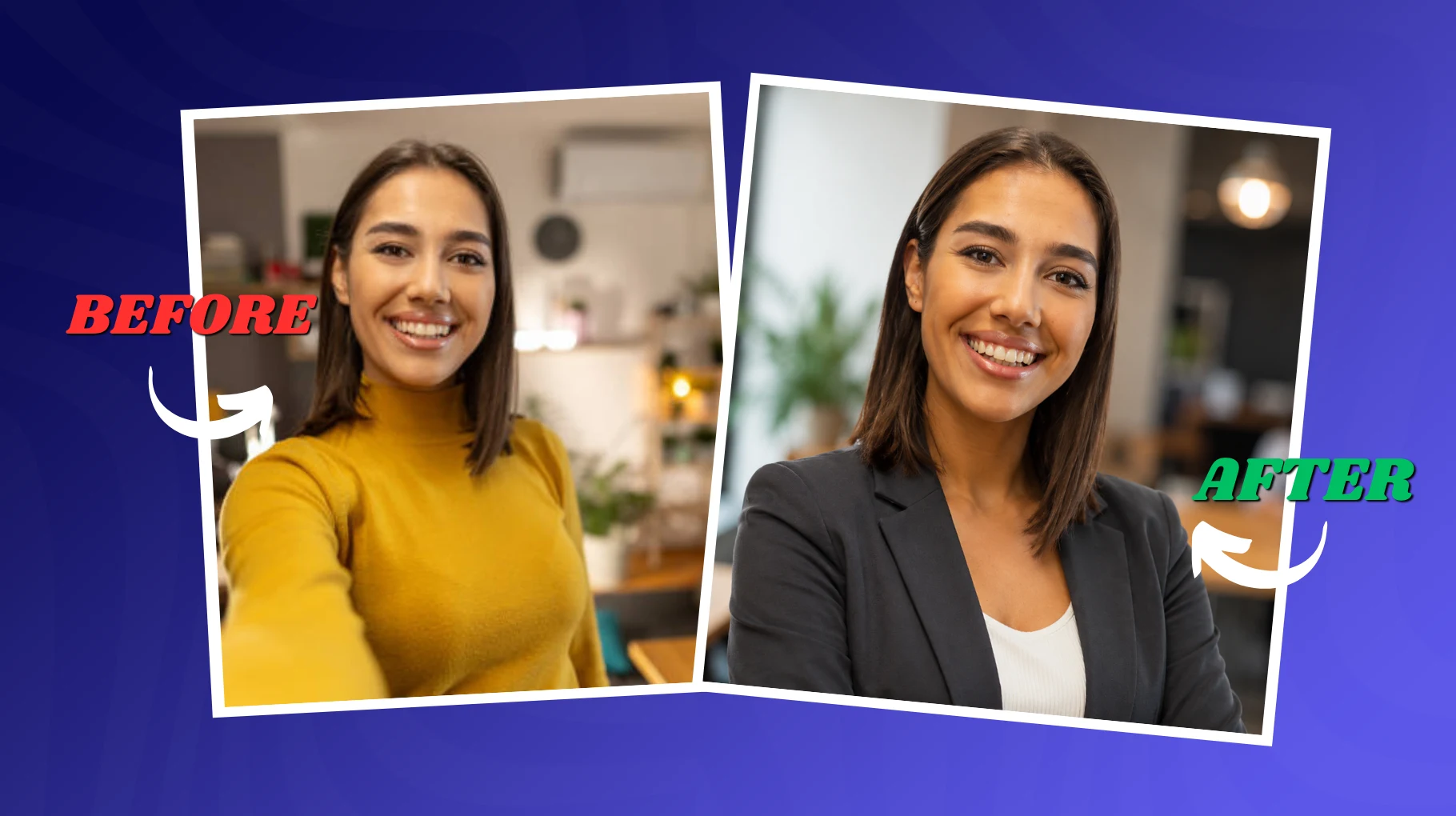
Professional LinkedIn headshot of a woman in her late 20s wearing a smart casual dark grey blazer over a simple white top. Natural window light from the left side, creating soft shadows on the right. Slightly blurred modern office or co-working space background with bokeh. Shot on a 50mm f/2 lens, focused sharply on the eyes, warm smile, and relaxed posture. Contemporary personal branding photography style. Warm, professional, confident mood. 8K, ultra-realistic skin detail, clean editorial color grade.
Why it works:
Another natural lighting scenario, which is quite flattering when it comes to taking headshots, is window light, which provides directional soft light and makes the light look genuine and not like that of a photo studio.
In terms of the background, the bokeh co-working space backdrop indicates a modern work environment, while the 50mm lens provides a realistic perspective. If you want to sharpen your prompt engineering skills to get even better results from these tools, there are dedicated resources worth exploring.
Best for: Product managers, UX designers, startup founders, developers, SaaS professionals
3. The Executive Authority Shot
For C-suite professionals, senior leaders, or anyone who wants to project gravitas and confidence.
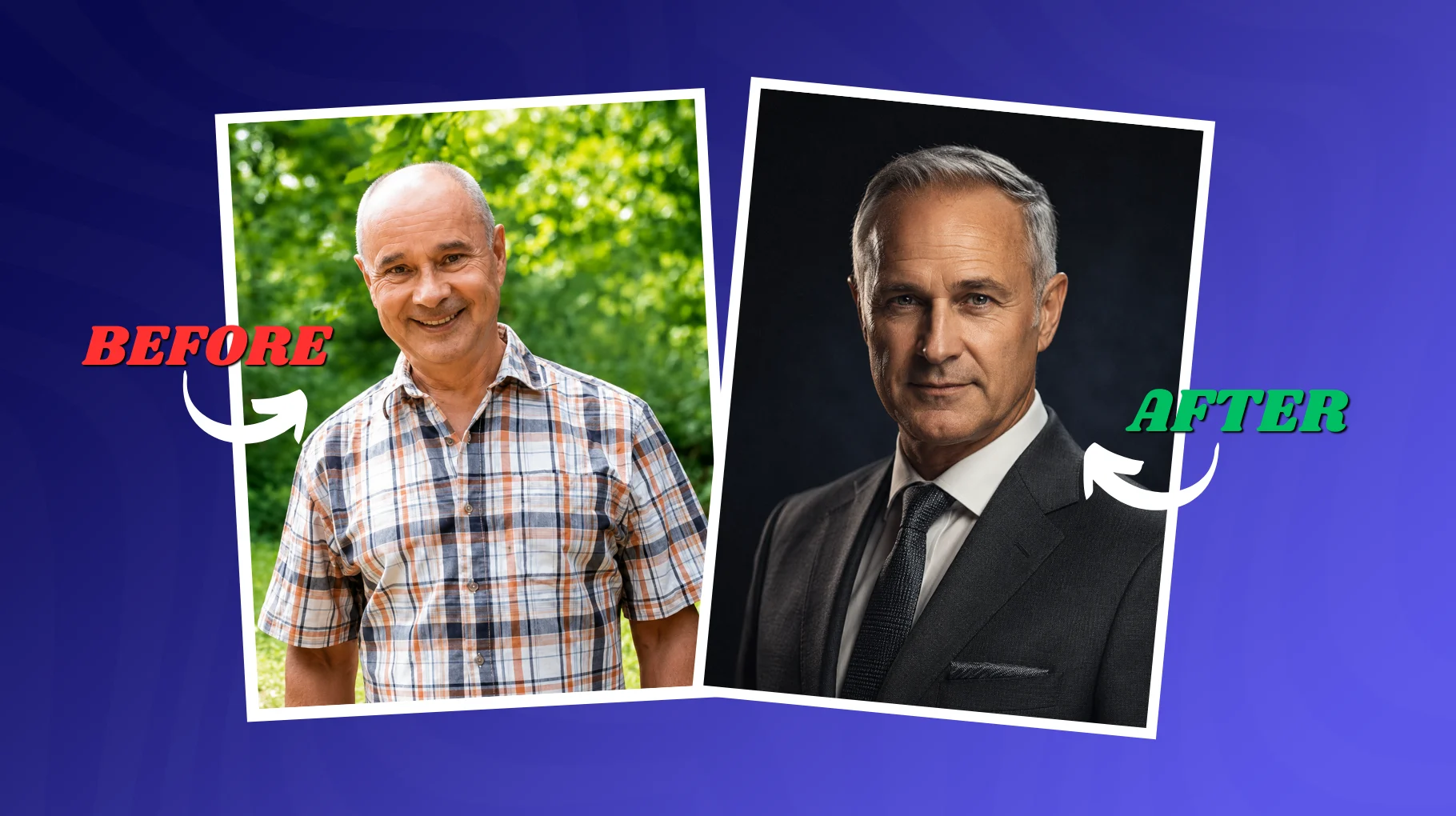
Executive portrait of a distinguished man in his 50s, silver hair, strong jawline, wearing a charcoal grey tailored suit with a subtle tie. Dramatic but controlled Rembrandt lighting, warm key light from above-left, deep shadow on one side of the face. Shot on an 85mm f/1.4 lens, medium depth of field. Dark gradient background, deep navy to charcoal. Serious, authoritative, trustworthy expression. High-end executive photography style. 8K, ultra-detailed fabric texture, cinematic portrait color grade, analog film grain overlay.
Why it works:
Known as Rembrandt lighting, named after the famous artist, this form of lighting creates a triangular shape of light on the subject's shadowed cheek. It is among the most impactful lighting schemes in portraiture photography, having an instant authoritative presence.
The darker gradient background adds depth to the composition. This particular prompt is designed to communicate authority even before one word is uttered. For inspiration on how cinematic techniques translate into stunning AI-generated visuals, browsing through cinematic AI photo prompts can be very helpful.
Best for: CEOs, CFOs, board members, senior partners, executive coaches
4. The Creative Industry Personal Brand Shot
For designers, marketers, content creators, and brand strategists who want a photo that feels distinctive, not just professional.
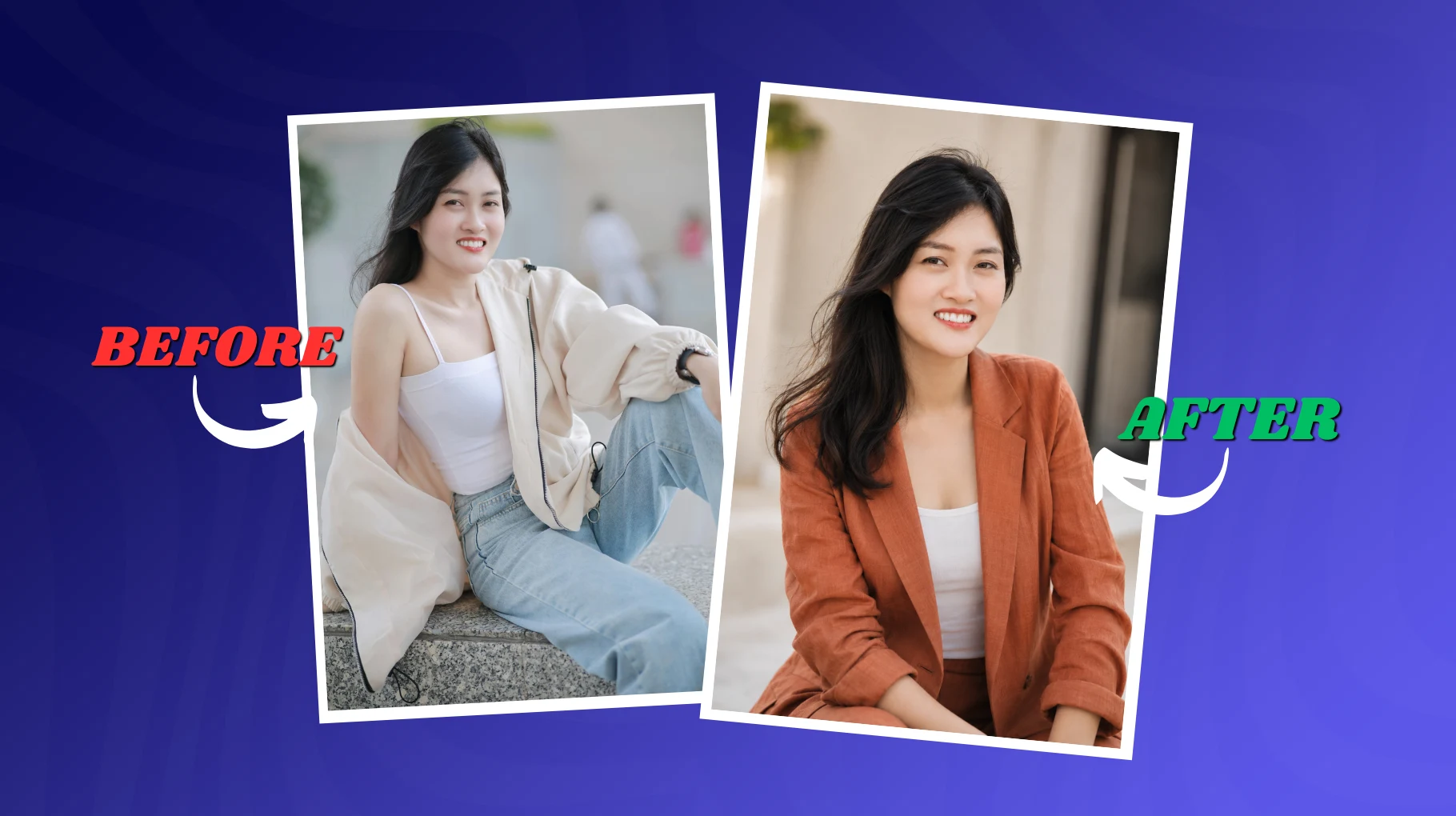
Personal brand headshot of a creative woman in her early 30s with bold, natural curly hair, wearing a terracotta-colored linen blazer. Shot outdoors in soft overcast daylight, with a clean white or light beige architectural background, a minimal building exterior, or a clean wall. Slight warmth in the color grade, golden hour feel without harsh shadows. Shot on an 85mm lens, shallow depth of field, gentle bokeh on the background. Genuine, expressive, confident smile. Editorial personal branding photography. Warm, creative, professional mood. 8K, ultra-realistic hair and skin texture, soft cinematic color grade.
Why it works:
Overcast daylight provides a natural giant soft box; it is even and flattering, ensuring there are no harsh highlights but rather saturated colors. The terracotta jacket helps in adding some flavor to make you stand out in your LinkedIn profile, while at the same time maintaining professionalism. Professionals in visual fields can also explore AI tools for graphic and UI design to complement their personal branding efforts.
Best for: Marketers, graphic designers, brand strategists, content creators, coaches, consultants
5. The Minimalist Premium Headshot
Sometimes less is more. This prompt produces a clean, timeless headshot that works for virtually any industry or role..
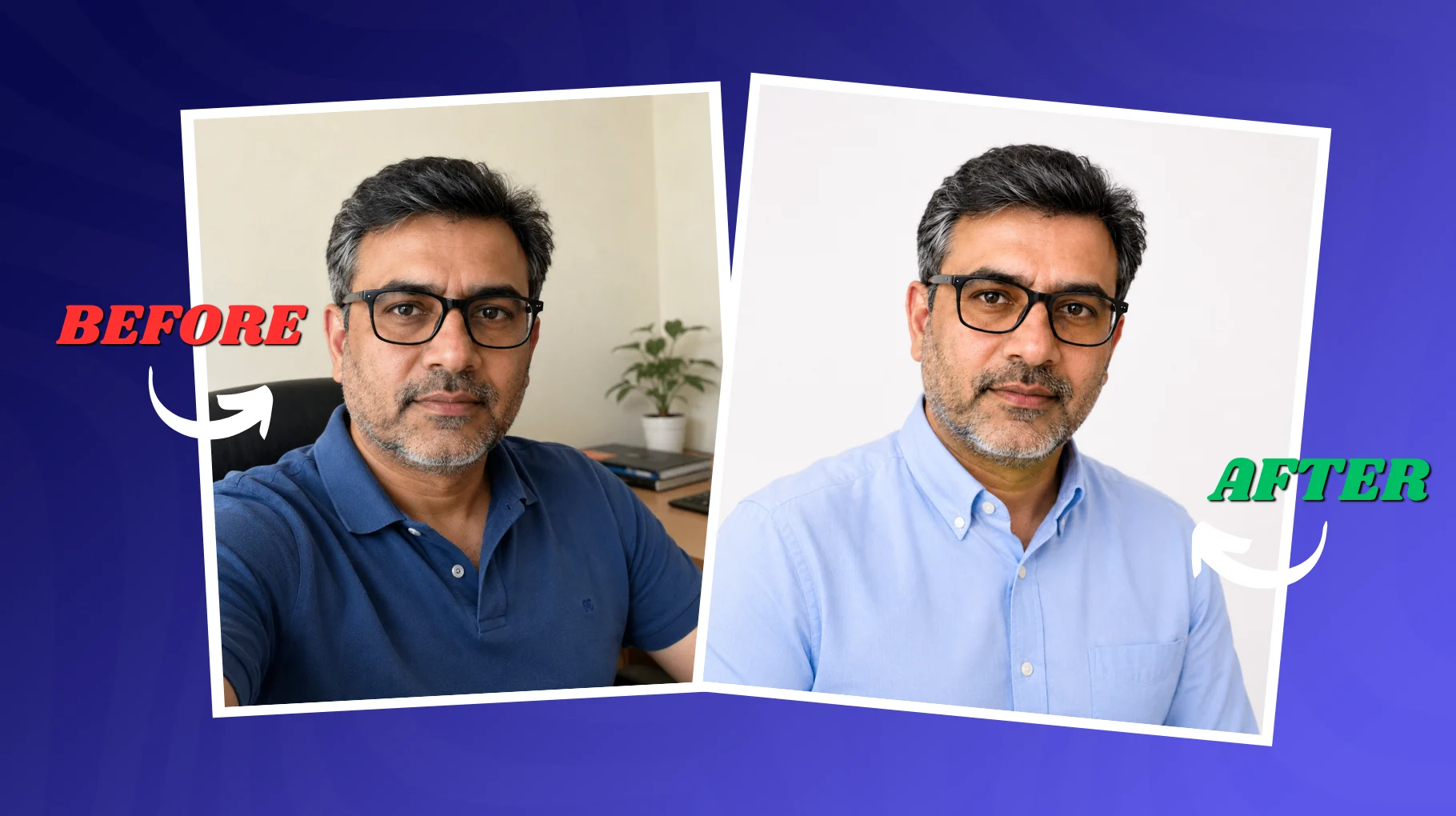
Ultra-clean professional headshot of a man in his 40s wearing a well-fitted light blue Oxford shirt, no jacket. Soft diffused frontal lighting with a subtle fill light, no harsh shadows. Pure white or off-white seamless background. Shot on an 85mm f/2 lens, tack-sharp focus on the eyes, slightly soft on the ears and shoulders. Calm, confident, friendly expression with a slight natural smile. Minimalist corporate photography style. Neutral, clean, polished mood. 8K, hyperrealistic skin texture, minimal color grade, bright and professional.
Why it works:
A white background is by far the most versatile choice for an all-purpose LinkedIn headshot. The photo will come out clean and can be resized for thumbnail purposes while also being suitable for either dark or light theme display. Lighting from the front completely prevents any shadow formation and thus creates a very professional appearance.
Best for: Anyone across any industry who wants a universally professional result
What Is an AI LinkedIn Profile Photo Prompt?
An AI LinkedIn profile picture caption is a complex text instruction given to an artificial intelligence image generation tool that will teach it how to design a perfect portrait with appropriate lighting, a clear background, stylish clothing, and the required facial expression.
It involves far more than "a professional portrait of a man." Instead, it provides specific guidance regarding camera work, lighting instructions, and moods for the generated image to look as though it was taken by a professional commercial photographer.
Real-world example: A founder using a well-prompted AI headshot in Midjourney or Flux can get a clean, studio-quality image in under 5 minutes with no photographer, no studio booking, no expensive retouching bill.
What Makes a LinkedIn Photo Look "Premium"?
Prior to addressing the prompts, it would be helpful to know how a good headshot can differ from an average headshot.
Good lighting - Even and directional lighting that enhances facial features with no harsh shadows
Simplicity in the background - Backgrounds that are either white or slightly blurred to avoid distractions
Sharp focus on the face - Eyes must be the sharpest part of the picture
Realistic facial expressions - Expressions that are confident and welcoming
Professional hints in wardrobe choice - Formal attire based on your industry
A combination of warm tones on the face and cold colors in the background
These are the guidelines followed in each prompt below.
Pros and Cons of Using AI for LinkedIn Photos
| Pros | Cons |
| No photographer or studio booking needed | Requires a good reference photo for best results |
| Results in minutes, not days | May need multiple iterations to get right |
| Costs significantly less than professional shoots | Accuracy to your actual appearance varies by tool |
| Easily adjustable, change background, lighting, style | Some platforms may flag AI-generated headshots |
| Great for testing different professional looks | Expressions can sometimes look slightly stiff |
Best AI Tools for LinkedIn Headshot Generation
| Tool | Best For | Strength |
| Midjourney | Stylized, editorial headshots | Best aesthetic quality, strong style coherence |
| Flux Pro | Photorealistic, detail-accurate results | Excellent prompt following, sharp skin texture |
| DALL-E | Quick concept and iteration | Easy to access via ChatGPT, good for testing |
| Stable Diffusion | Custom fine-tuned headshot models | Maximum control, specialized headshot LoRAs available |
For more editorial-type headshots, the best choice is still Midjourney. If you want your generated images to be highly realistic with accurate prompts, then the best option is Flux Pro, especially when it comes to skin texture, clothing, and lighting. To get the most out of these platforms, it also helps to use dedicated AI prompt tools that help you refine and optimize your inputs before generating.
For LinkedIn profiles, you should use Flux Pro for more realistic images.
Lighting Keywords That Instantly Upgrade Headshot Quality
| Lighting Keyword | Effect | Best Use Case |
| Octabox studio light | Soft, even, professional studio feel | Corporate headshots |
| Rembrandt lighting | Dramatic shadow triangle, authoritative feel | Executive portraits |
| Window light | Natural, warm, authentic directional light | Approachable personal brand shots |
| Overcast daylight | Perfectly even, no harsh shadows | Outdoor personal brand photography |
| Rim lighting | Bright outline separating the subject from the background | Adding depth to any headshot |
| Soft frontal fill | Even, shadow-free, clean, and bright | Minimalist premium headshots |
Camera Keywords That Make AI Headshots More Realistic
| Camera Keyword | Effect on Output |
| 85mm f/1.4 or f/1.8 lens | Natural portrait compression, smooth background blur |
| 50mm f/2 lens | True-to-life perspective, less background compression |
| Shallow depth of field | Subject sharp, background softly blurred, professional look |
| Bokeh | Soft circular light blurs behind the subject |
| Tack-sharp focus on eyes | Eyes crisp and detailed, critical for headshot quality |
| Medium format camera feel | Simulates high-end Hasselblad-style output, rich detail |
Why Most AI Headshot Prompts Fail
If your AI-generated LinkedIn photos keep looking flat or fake, one of these five mistakes is likely the cause:
1. Too vague on lighting. "Good lighting" tells the model almost nothing. Specify the source, direction, and quality of the octabox, window light, and Rembrandt, and the result changes completely.
2. No lens reference. Without a focal length cue, the model defaults to a generic perspective. The 85mm reference alone changes how backgrounds compress and how the subject looks proportionally.
3. Forgetting background detail. "Professional background" is too generic. Say "light grey seamless" or "soft bokeh co-working space," and the model has something to work with.
4. Missing mood or expression direction. "Confident and approachable" or "warm, natural smile" guides both the facial expression and the overall color treatment the model applies.
5. Overloading the prompt. Too many competing instructions create visual noise. Each prompt above is structured with subject, lighting, camera, background, and mood, not a random list of keywords. Freelancers and independent professionals who rely heavily on personal branding can also benefit from checking out the best AI tools for freelancers to strengthen their overall online presence.
Conclusion
One of the most valuable changes to boost your LinkedIn presence is getting an expensive LinkedIn headshot, and now you have access to this upgrade through the power of AI technology.
Each of the five prompts in the guide above covers all professional archetypes, including a corporate executive, tech professional, creative professional, personal brand, and minimalist clean professional. They are based not on abstract descriptions but on photography knowledge about light placement, camera selection, background usage, and moods. Those who want to go further in building their brand on LinkedIn can also explore resources specifically focused on LinkedIn content creation and personal branding to maximize their impact.
Use the prompt that fits your niche the most out of those provided above and generate at least four to eight different variations. Try to understand which of them works well for you and why, strengthen that side, and go on.
Most quality headshots generated using AI require multiple attempts to be successful, but thanks to these prompts, you already have a solid starting point.
FAQs
1. Can AI really generate a professional LinkedIn profile photo?
Yes, AI image tools like Midjourney and Flux Pro can create very realistic and professional-looking LinkedIn headshots. With the right prompt that includes lighting, background, and expression details, the output can look just like a studio photo taken by a professional photographer.
2. What is the best AI tool to create a LinkedIn headshot?
Flux Pro is the top choice for realistic LinkedIn headshots because it follows prompts very accurately and produces sharp skin textures. Midjourney works better for editorial or stylized looks. Both are great options depending on whether you want a photorealistic or more polished, creative result.
3. What should a good LinkedIn profile photo look like?
A good LinkedIn photo should have soft, even lighting, a clean or blurred background, sharp focus on your eyes, and a confident but friendly expression. Your outfit should match your industry. These small details together make your photo look premium, credible, and trustworthy to anyone who views it.
4. How do I write an AI prompt for a LinkedIn headshot?
Start with your subject description, then add lighting type like octabox or window light, mention the lens such as 85mm f/1.8, describe the background, and end with the mood or expression. Being specific in every part of your prompt gives the AI much better instructions to produce a high-quality result.
5. What lighting works best for AI-generated LinkedIn photos?
Octabox studio light works great for clean corporate headshots, while window light gives a natural and approachable feel. Rembrandt lighting adds authority and depth for executive portraits. Choosing the right lighting keyword in your prompt makes a huge difference in how professional the final AI image looks.
6. Is it okay to use an AI-generated photo on LinkedIn?
Most people use AI headshots on LinkedIn without any issues. However, some users have reported that certain platforms may flag obviously AI-generated images. To avoid this, use a realistic prompt with Flux Pro and make sure the image closely resembles how you actually look in real life.
7. What camera settings should I mention in an AI headshot prompt?
Mentioning an 85mm f/1.8 lens gives your AI headshot that classic portrait compression. Adding "shallow depth of field" blurs the background naturally. You can also include "tack-sharp focus on eyes" and "bokeh" to make the final image look like it was shot by a professional portrait photographer.
8. How many AI headshot variations should I generate?
It is recommended to generate at least four to eight variations using the same prompt. This gives you enough options to compare lighting, expression, and background results. From there, pick the one that looks most natural and professional. Minor prompt adjustments between attempts can also improve your final output significantly.
9. Which AI LinkedIn headshot prompt is best for creative professionals?
The Creative Industry Personal Brand Shot prompt works best for designers, marketers, and content creators. It uses overcast daylight, a terracotta blazer, and an 85mm lens with soft bokeh. This combination produces a warm, distinctive, and professional look that stands out on LinkedIn without looking overly corporate or stiff.
10. Why do most AI headshot prompts fail to look realistic?
Most AI headshot prompts fail because they are too vague. Saying "good lighting" or "professional background" gives the AI almost nothing to work with. You need to specify lighting type, lens focal length, background description, and expression mood. Each of these details helps the AI produce a sharper and more believable result.